PIXEL — Meta Pixel (Page 1 of 3)
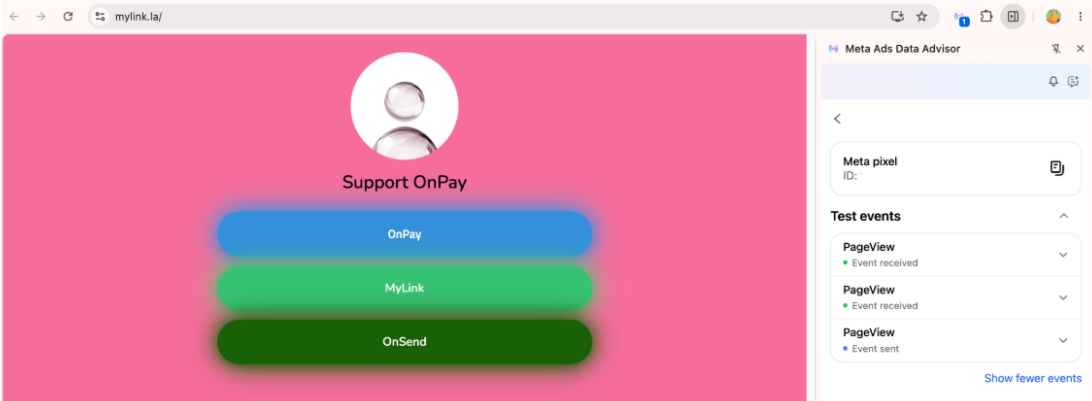
Meta Pixel
Track visitor activity on your MyLink page by integrating Meta Pixel. Follow these steps to activate it in MyLink and connect it to your Meta Business Suite.
Requires:You need to be subscribed to the Pro or Premium package before setting up Meta Pixel.
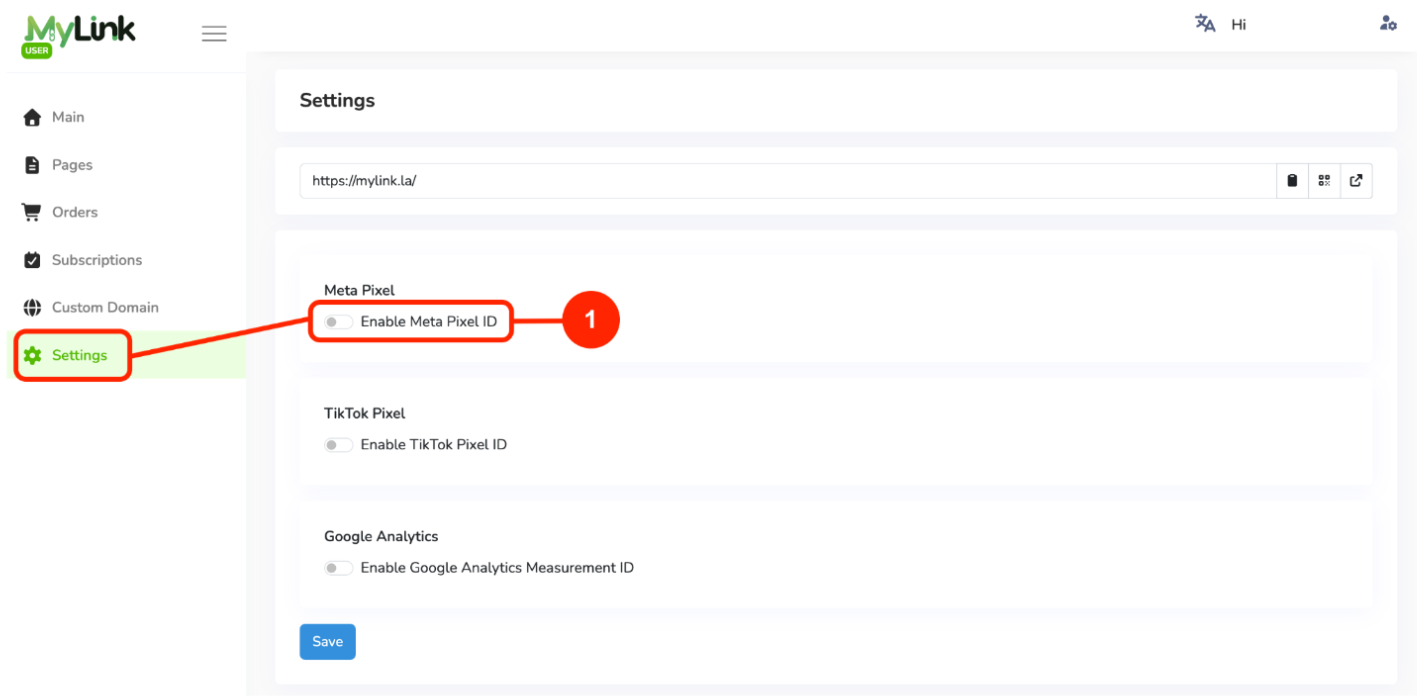
In MyLink, go to Settings and Enable Meta Pixel ID.
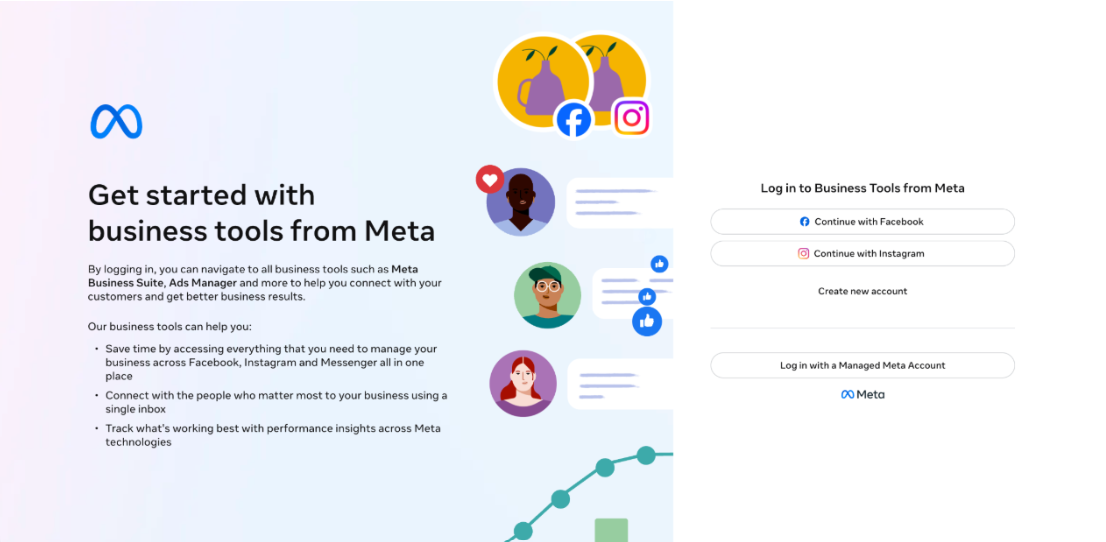
Login to Meta Business Suite using your Facebook account and choose your Business Manager account .
If you don't have a Business Manager account, create a new one first before proceeding.
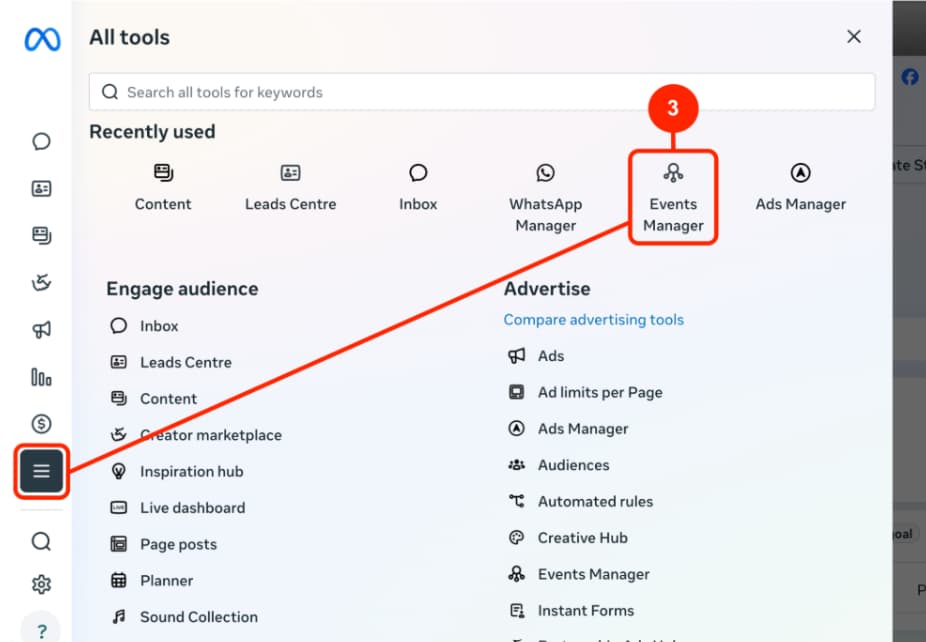
In Meta Business Suite, Click All tools, then select Events Manager.
Under Connect Data, click Connect data sources then select Web.
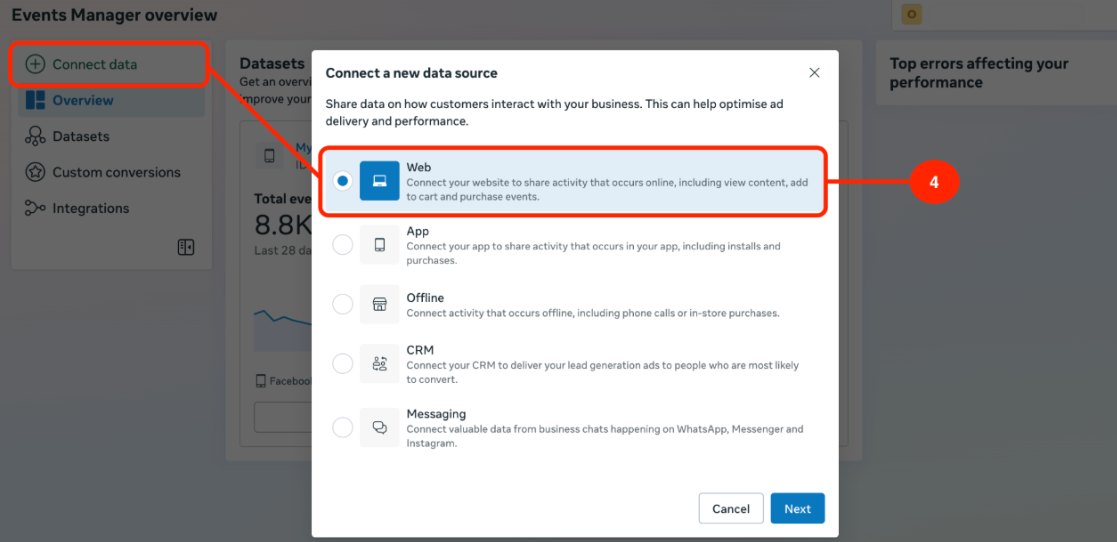
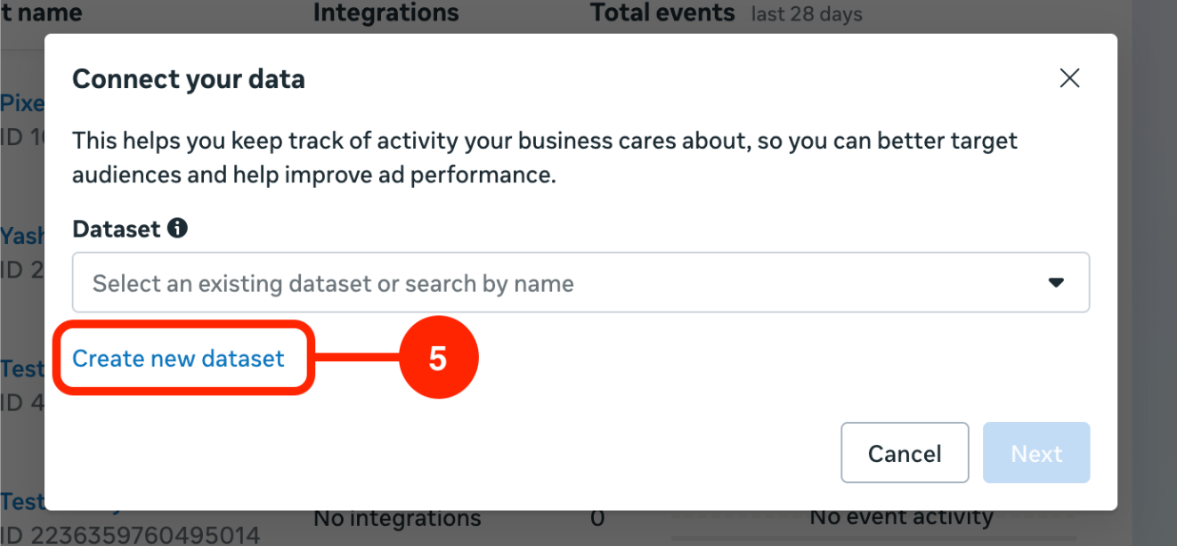
Click Create a new dataset.
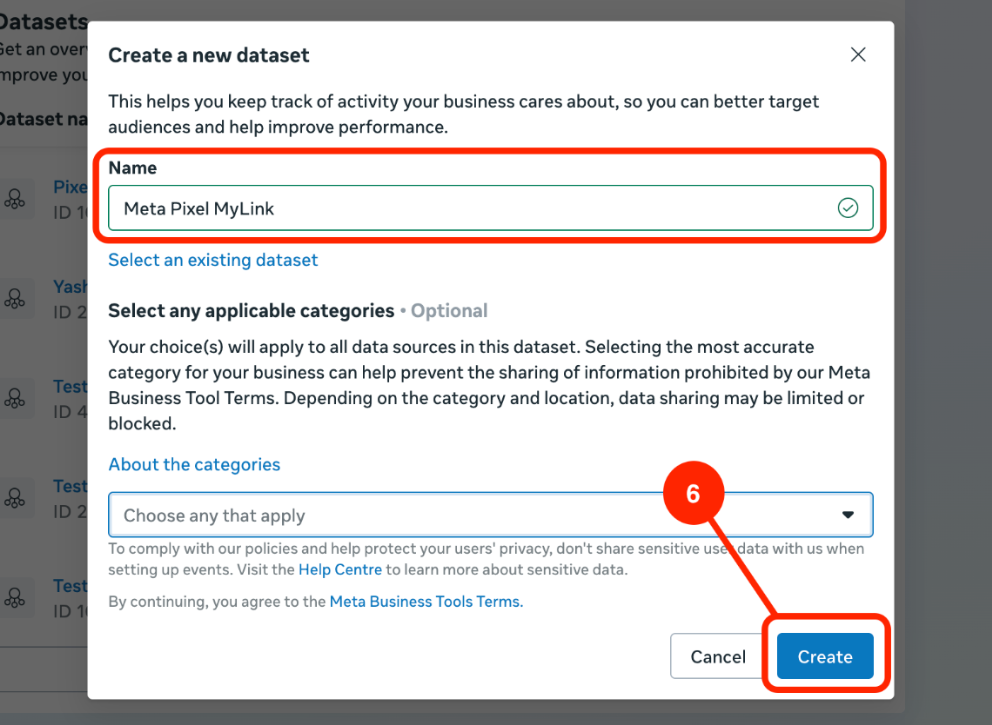
Enter your preferred Pixel Name, then click Create.
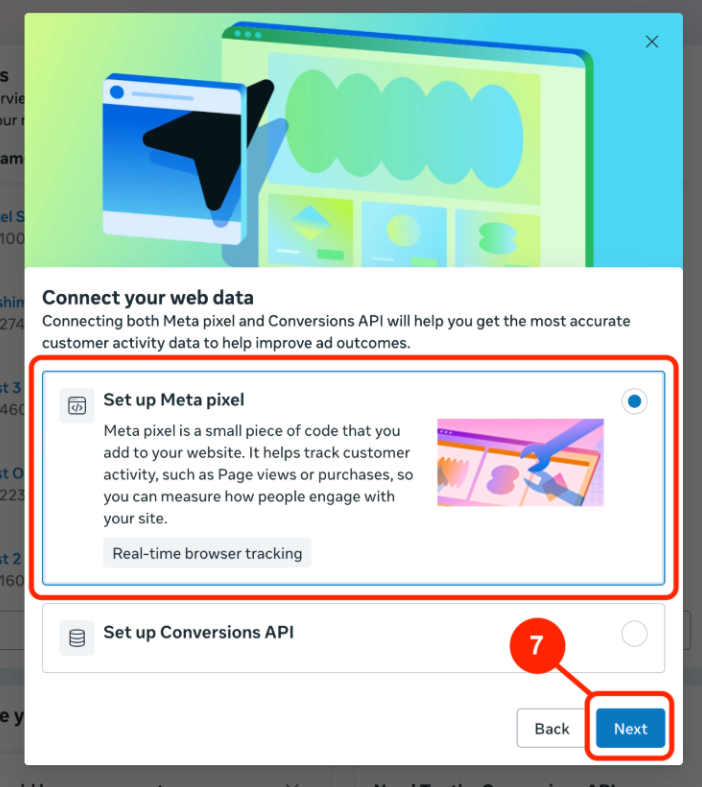
Select Set up Meta Pixel, then click Next.
Choose Add Meta Pixel code to website yourself, then click Next.
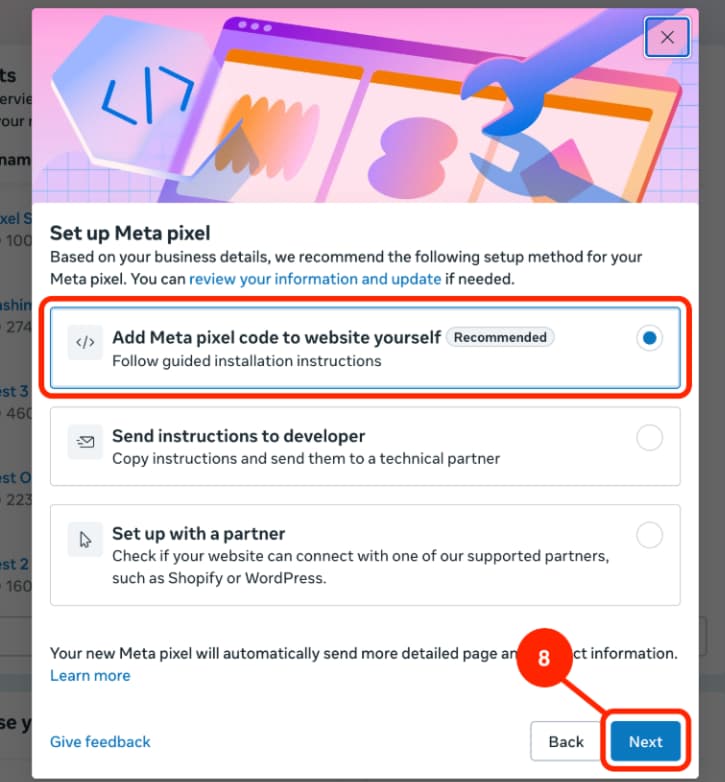
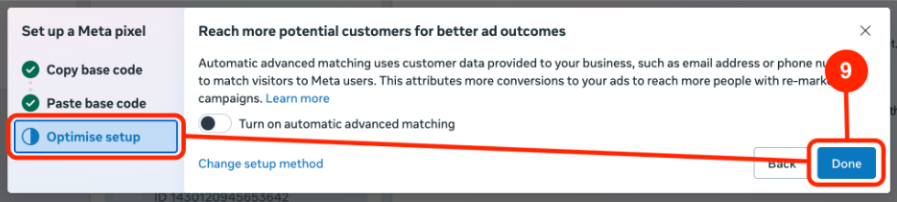
Click Optimise setup, then click Done.
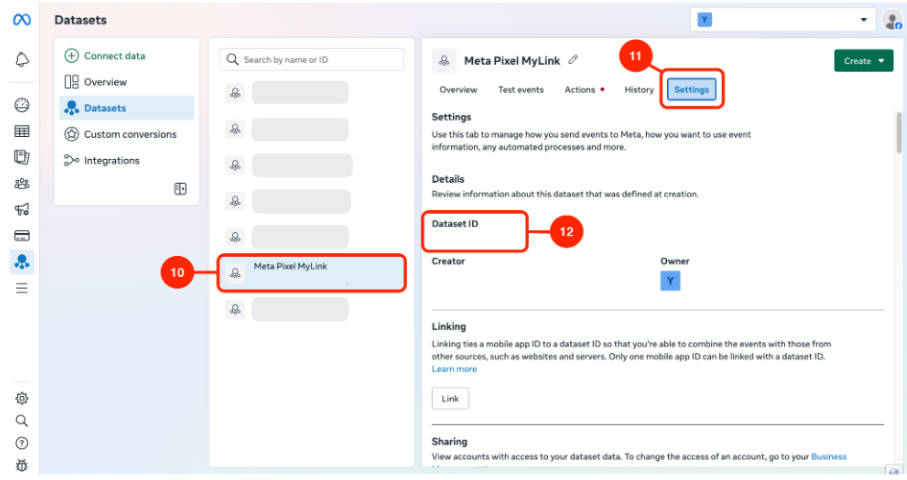
Choose the Dataset that you have just created.
Click Settings.
Find the Dataset ID and copy the ID.
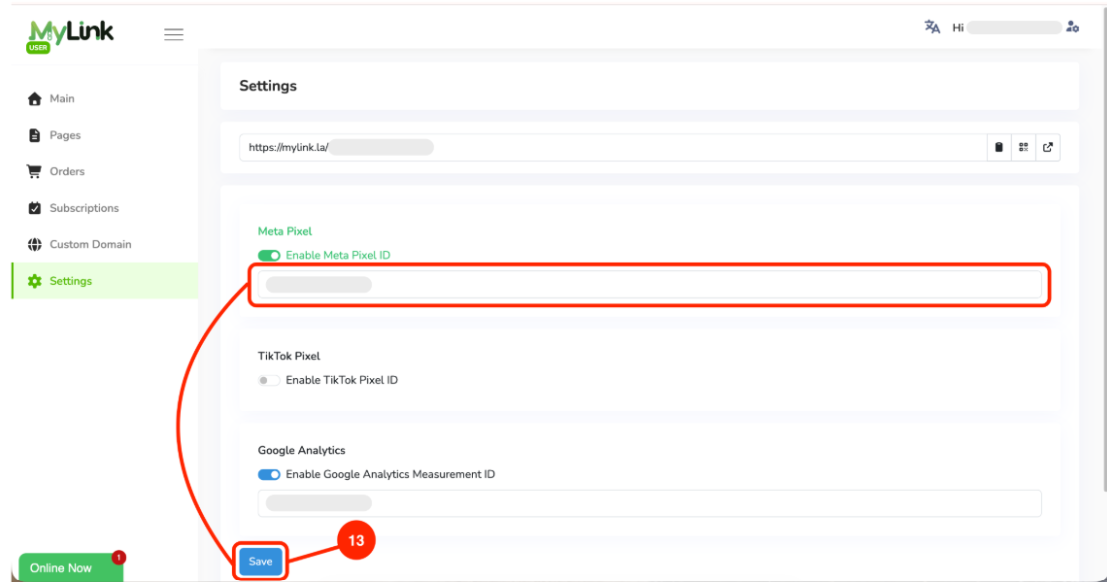
Return to MyLink, paste the Dataset ID into the Meta Pixel field, then click Save.
You can use the Meta Ads Data Advisor extension to check whether your Meta Pixel is already active and receiving data.