PAGE — Add Page (Page 1 of 2)
Add Page
The Add Page function allows you to create multiple separate pages within a single profile, keeping your content more organized and easier to navigate.
Page limits by plan:
- Free Plan: 1 page (Default page)
- Pro Plan: Up to 3 pages
- Premium Plan: Up to 5 pages
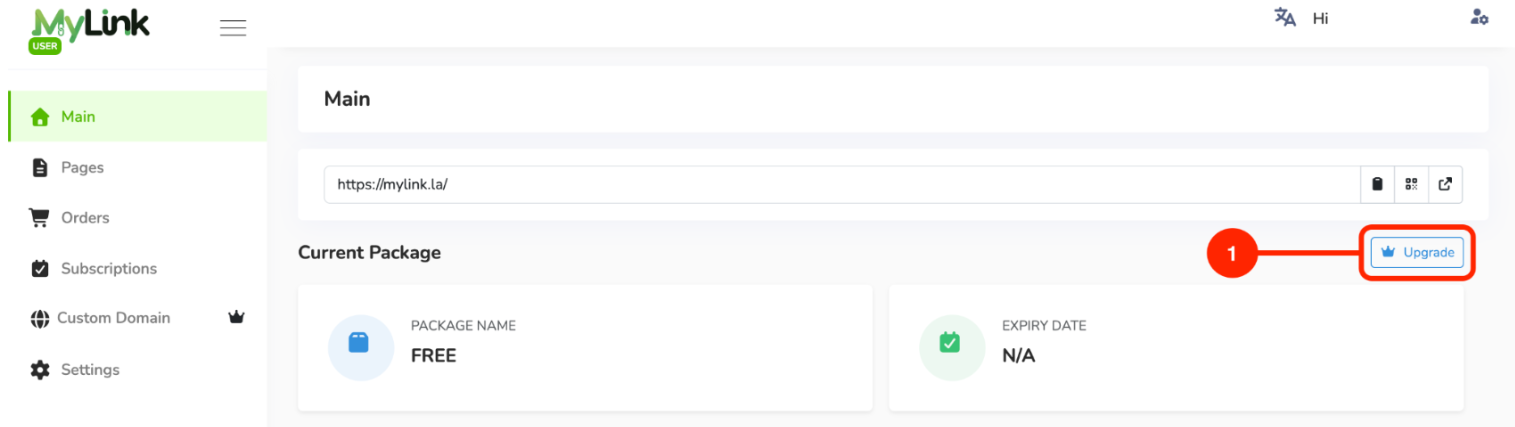
Click the Upgrade button on the Main page.
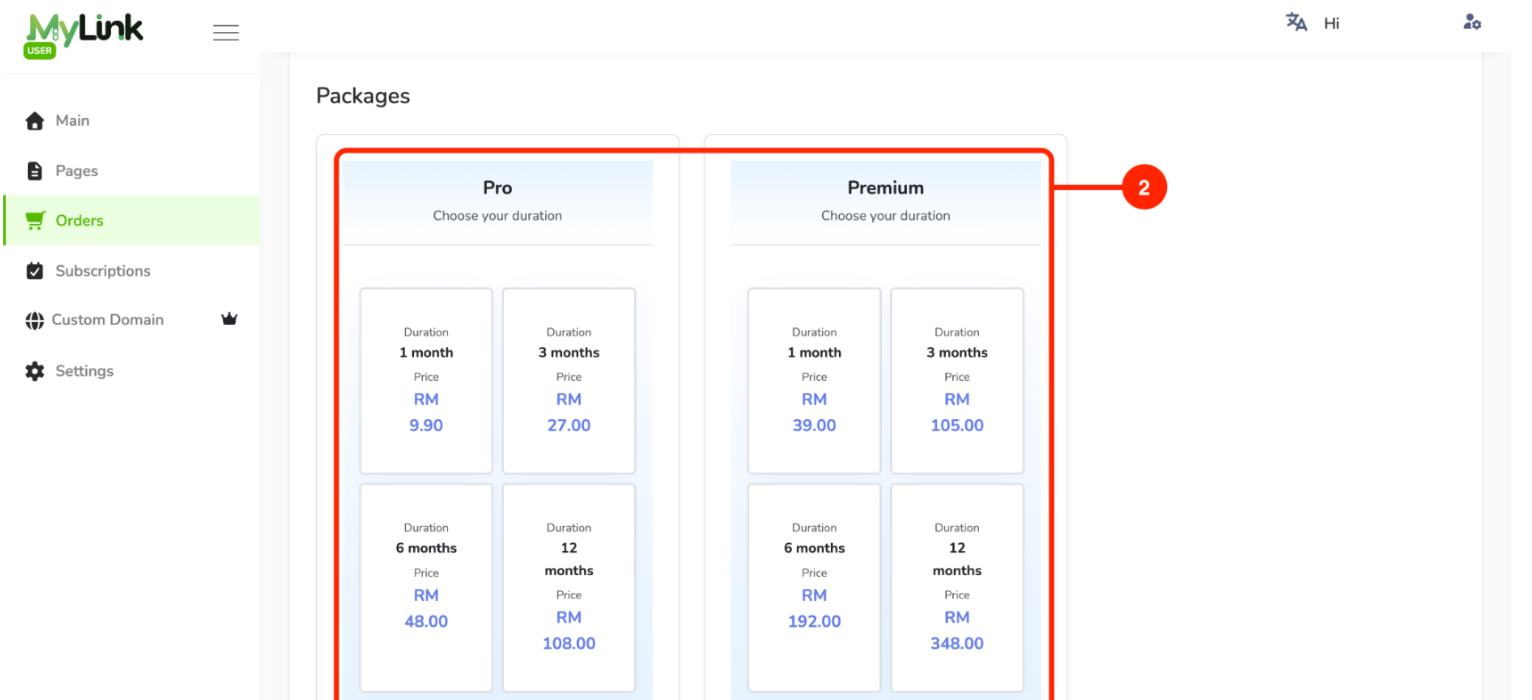
Select the package and choose your preferred subscription duration.
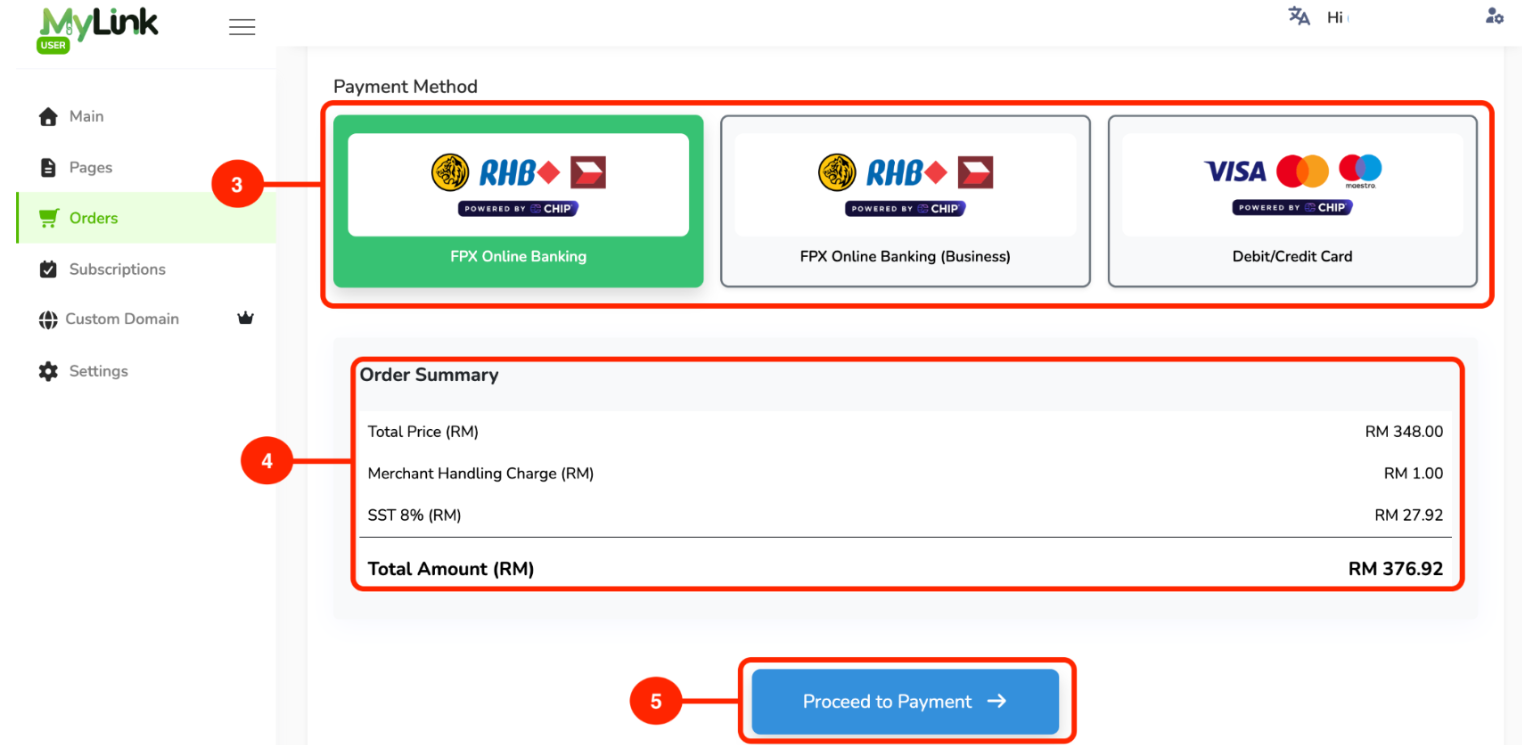
Select your payment method.
Check the order summary.
Click Proceed to Payment.
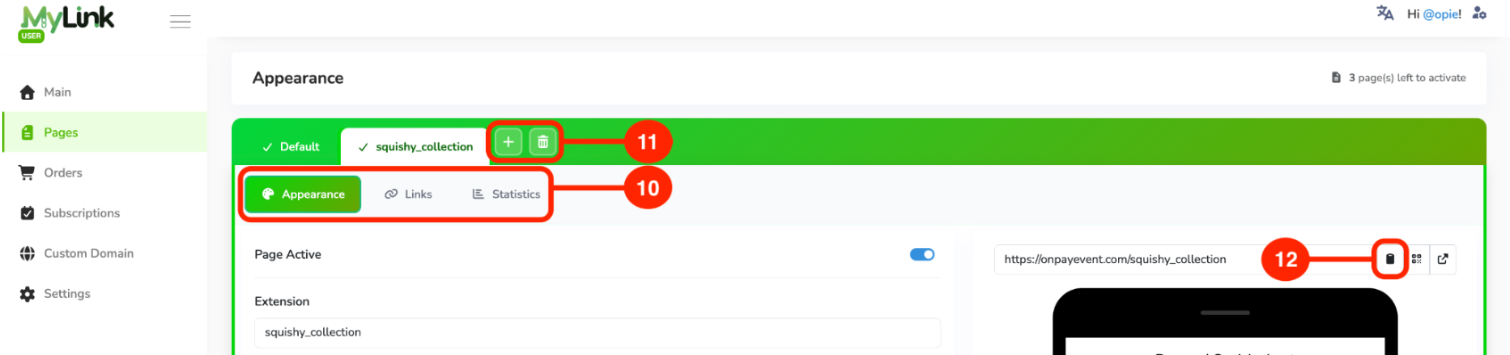
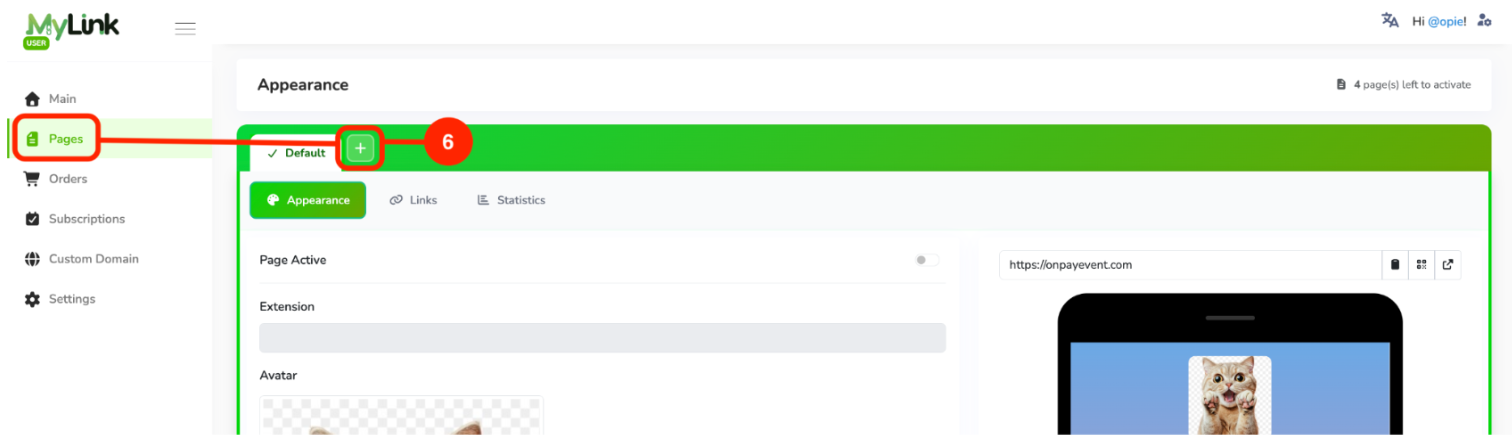
After subscribing to the Pro or Premium package, click the + icon to Create New Page.
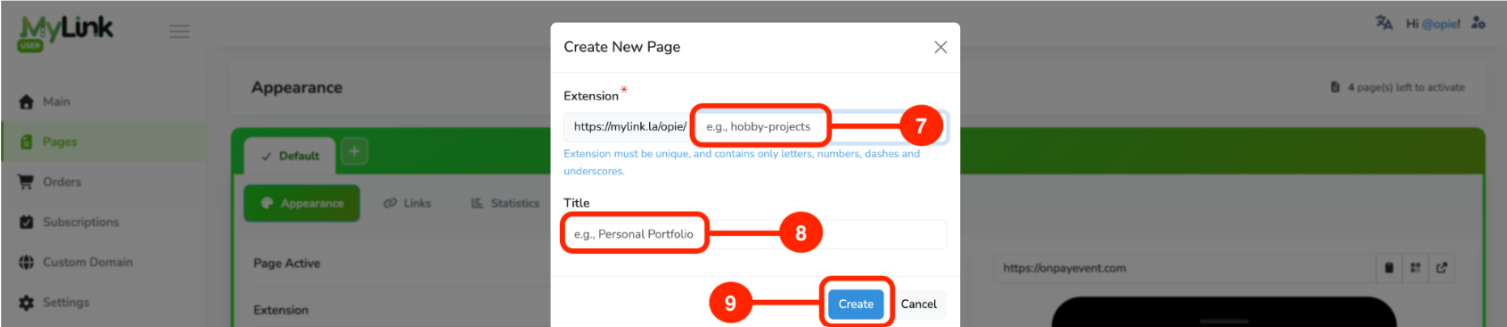
Insert Extension to define a unique URL address for the page.
Extension must be unique and contain only letters, numbers, dashes, and underscores.
Set the name or title of the page.
Click Create.
After creating a page, you can edit its Appearance, Add Links, and view Statistics.
You can also Add a New Page by clicking the + icon, or delete a page by clicking the trash icon.
Share your new page with others.